Workspace Spectra & Maps
Workspace: Spectra and Maps
The Maps and Spectra workspaces share a unified design and many core features. However, the Maps workspace includes specialized tools engineered for handling large hyperspectral datasets.
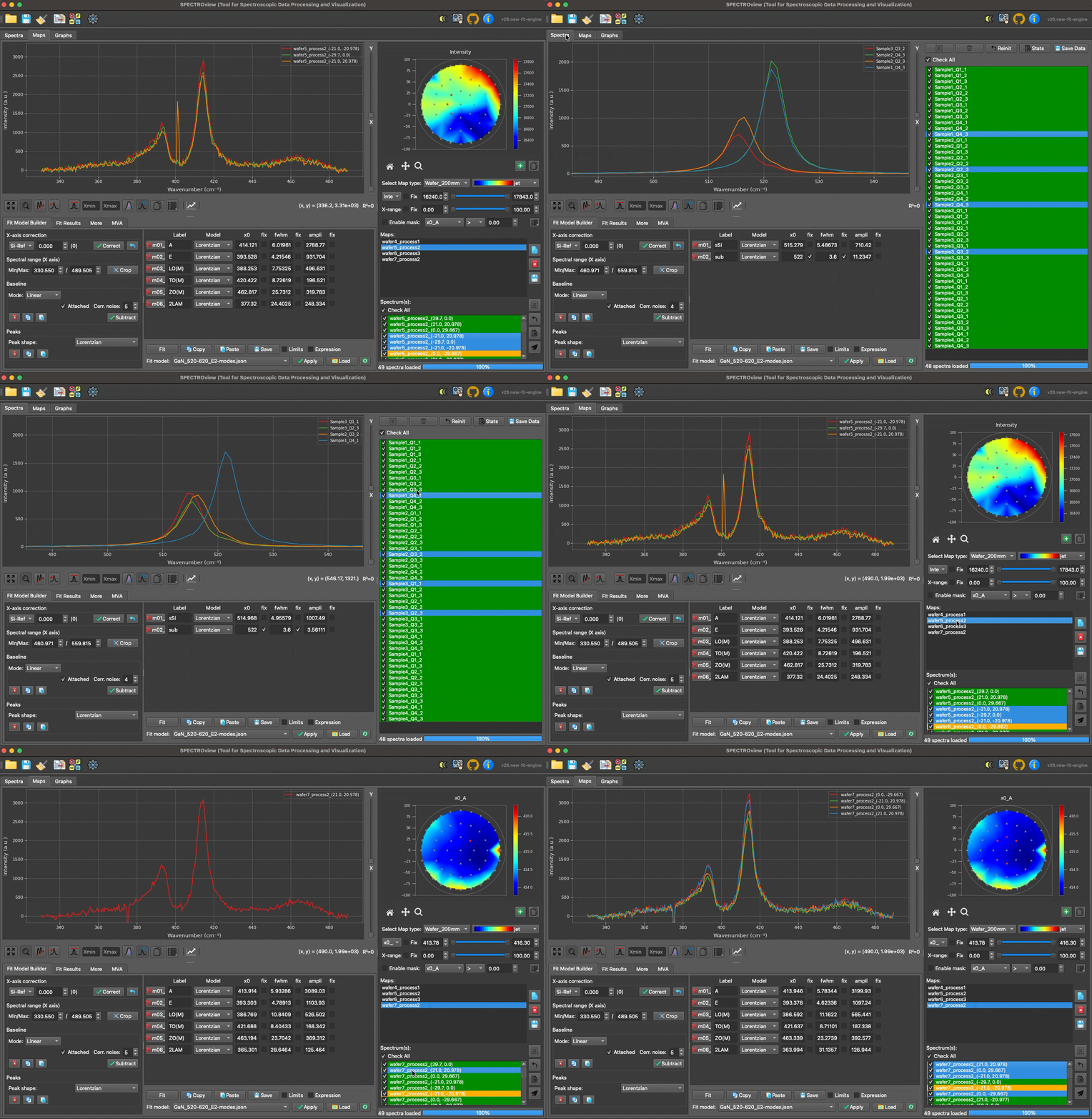
Interface overview of the
Spectra and Maps workspaces. Both interfaces are divided into three primary sections: Top-left (SpectraViewer), bottom-left (FitModelBuilder), and right (SpectraList / MapList).
1. MapList and MapViewer
MapList and MapViewer are widgets designed for the efficient navigation and management of your hyperspectral datasets. The MapList displays all loaded map files, including wafer maps and standard 2D maps.
Three utility buttons located on the right side of the MapList allow you to: (1) view the selected map data, (2) delete the selected map from the workspace, or (3) export the selected map directly to an Excel file.
You can easily navigate between loaded 2D maps using the MapList. The selected map is rendered in the MapViewer. By default, the MapViewer displays a heatmap of signal "Intensity" or "Area". If the map has been fitted, you can select and visualize the heatmap of any fitted parameter.
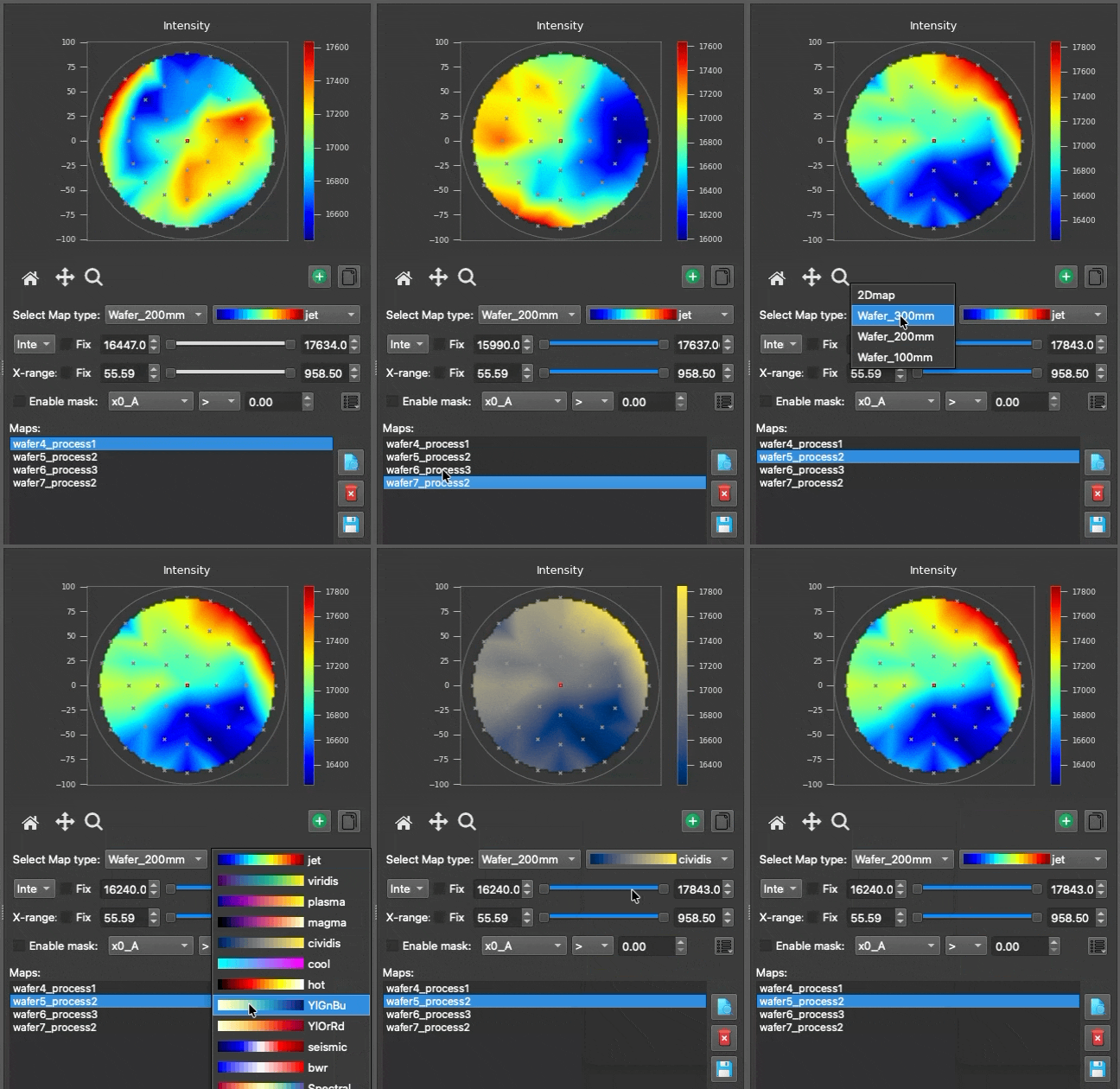
- Dual sliders allow you to quickly adjust the spectral range and the data range of the heatmap plot.
- You can open several
MapViewerinstances simultaneously to compare different fitted parameters. - The options (
…) menu includes a Color scale selector to switch the heatmap between Linear and Log normalization. Log is useful when values span several orders of magnitude; it automatically falls back to linear when the data range is not strictly positive.
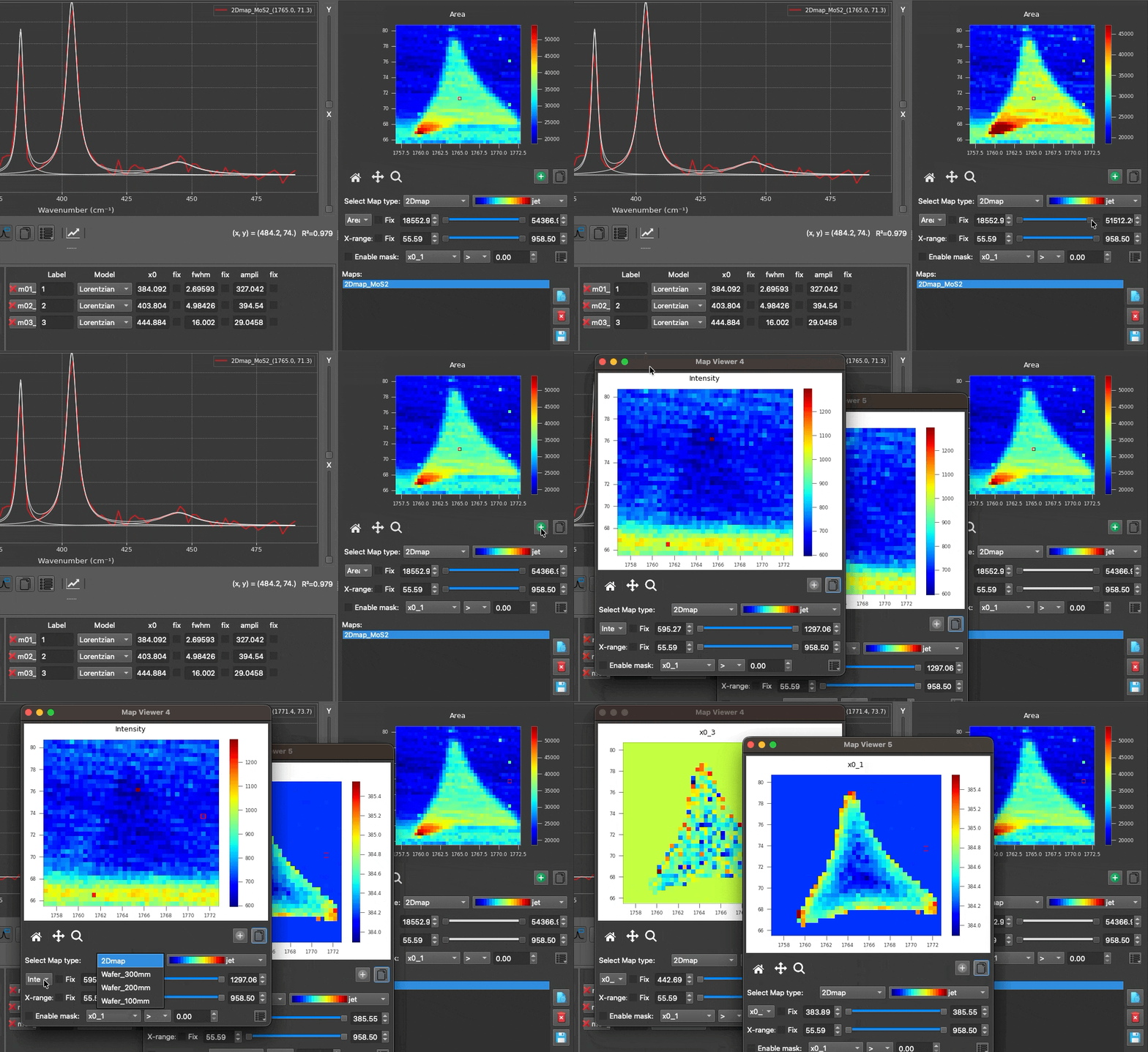
Mask Feature: Isolate specific regions of the heatmap by defining custom, parameter-based numerical filters.

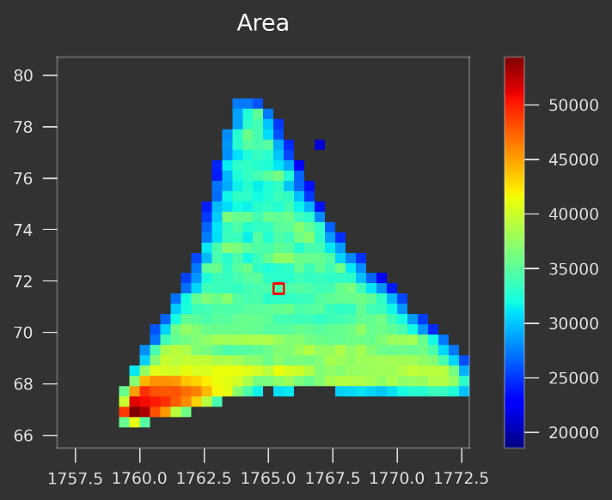
Example of the mask feature for 2D maps: An MoS2 flake is isolated by applying a mask (intensity of peak A1g > 40 a.u.) to filter out the surrounding substrate.
2. SpectraList
The SpectraList displays all loaded discrete spectra (in the Spectra workspace) or all spectra for the currently selected map (in the Maps workspace) (see fig below).
You can select one or multiple spectra simultaneously; the selected spectra are immediately visualized in the SpectraViewer. Dedicated buttons allow you to select all spectra, clear your selection, display a comprehensive fit statistics report, or send the currently selected spectra to the Spectra workspace for isolated analysis.
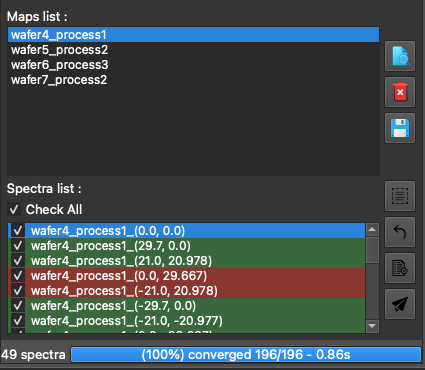
The
SpectraList alongside the progress bar in the Maps workspace.
Coloring Rules: Each spectrum in the list is automatically assigned a unique, consistent color indicator. These colors are strictly preserved even when you use the search/filter box to narrow down the list, ensuring you never lose track of which spectrum corresponds to which curve in the viewer.
The Progress Bar under the SpectraList displays real-time fitting progress (%), number of converged spectra, and elapsed time (s). A "Stop" button is provided to safely halt an ongoing fitting process.
2.1. Cross-Workspace Transfer
When sending selected spectra from the Maps workspace to the Spectra workspace, the system uses deep-copied payload dictionaries. This means that:
- The raw intensity and coordinate arrays are perfectly preserved.
- The
baseline_config(including anchor points and calculation modes) is transferred exactly as you configured it. - Your entire
fit_model(including all peak limits, expressions, and initial guesses) is retained. - The active spectral cropping bounds and baseline subtraction states are kept identical.
This ensures that transferred spectra retain their full interactive and analytical states in the new workspace tab without affecting the original map.
3. SpectraViewer
The SpectraViewer is the central plotting widget where all spectra selected via the SpectraList (along with their best-fit curves) are visualized.
3.1. SpectraViewer with Interactive Mouse Controls
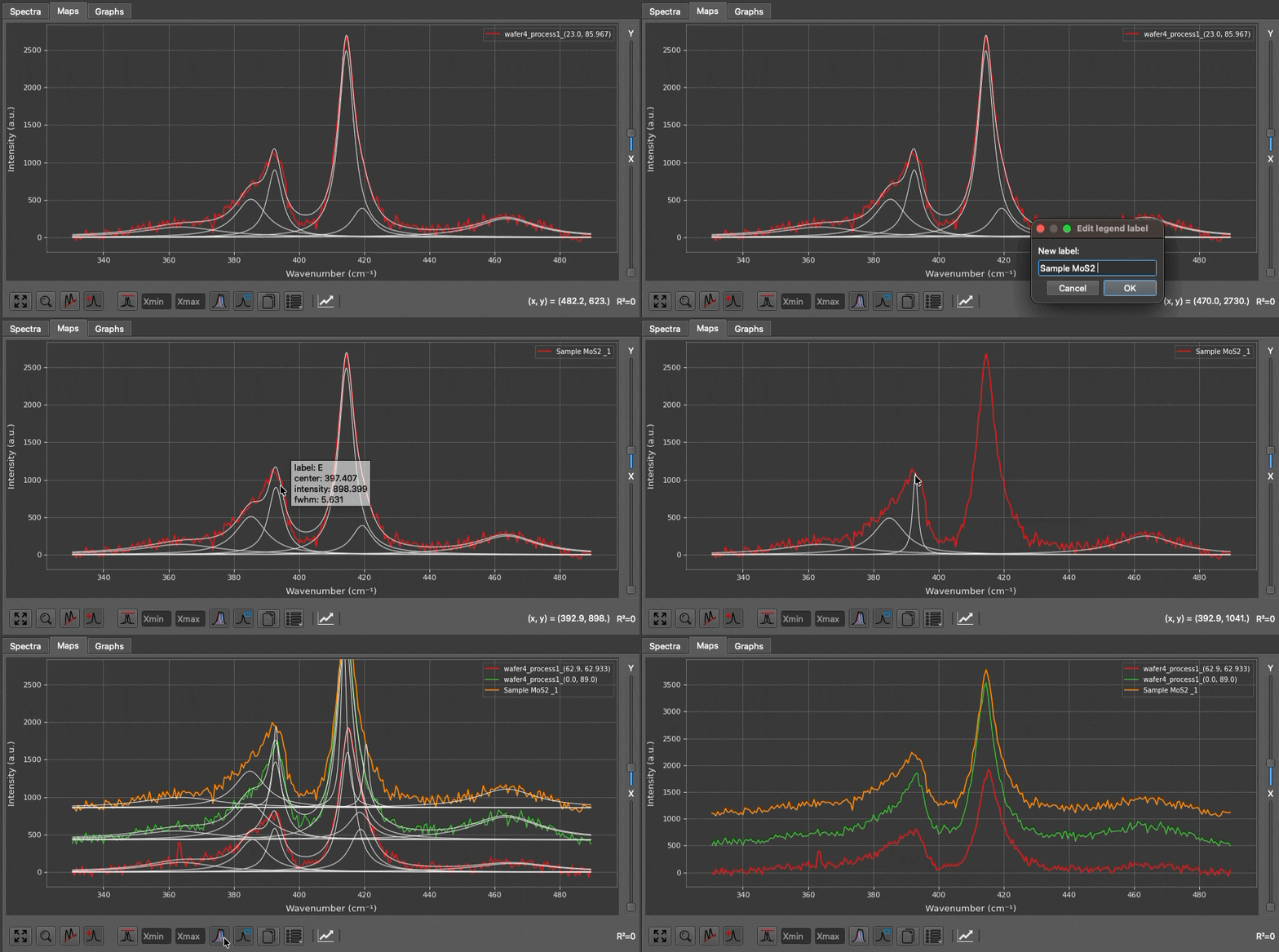
- Show Peak Parameters: Hover your cursor over any fitted peak to display a tooltip containing its precise parameters.
- Add/Remove Peaks: With the "Peak" button enabled in the toolbar, left-click to drop a new peak guess, or right-click near an existing peak to remove it.
- Adjust Peak Initial Guesses: Click and drag the center or width of an initial peak guess to manually adjust it before fitting.
- Quick Rescale Y-axis: Use your mouse wheel to rapidly scale the Y-axis up or down.
3.2. Toolbar Buttons and View Options
| Button | Function |
|---|---|
 |
Rescale: Automatically rescales the plot axes to fit the current data. Shortcut: Ctrl + R. |
 |
Zoom: When toggled on, enables a click-and-drag box zoom feature using the left mouse button. |
 |
Baseline: When toggled on, allows you to manually define baseline anchor points by clicking directly on the spectra. |
 |
Peaks: When toggled on, allows you to manually add initial peak guesses by clicking directly on the spectra. |
 |
Normalization: Displays the selected spectra normalized to their maximum peak intensity. Enter values into the "min" and "max" fields to normalize based on a specific spectral range.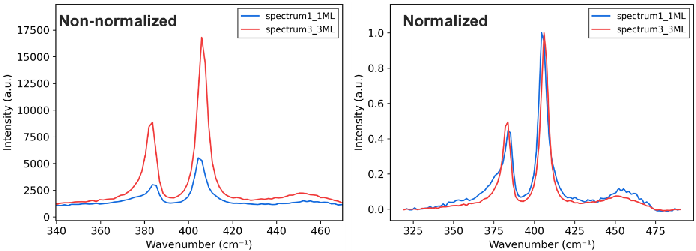 Raw spectra (left) vs. normalized spectra (right) — highly useful for inspecting subtle peak shifts. |
 |
Show Bestfit: Toggles the display of the best-fit curve(s). |
 |
Legend: Toggles the display of the legend box. Double-click anywhere inside the legend to edit the palette, maximum number of displayed entries, and spectrum colors and labels in one dialog. Changes are applied with OK or discarded with Cancel. For responsiveness, Spectra and Maps workspace selections are edited in batches of up to 100 spectra; narrow the selection to edit spectra outside the current batch. |
 |
Copy: Copies the plot to your clipboard as a high-quality image. Use Ctrl + Click (or Cmd + Click on macOS) to copy the raw numerical plot data to your clipboard instead. |
 |
Plot Heatmap: Toggles the 2D intensity heatmap visualization mode for multiple selected spectra. Displays continuous spectral intensity evolution with dedicated Y-axis selection, custom labeling, and resolution controls directly on the toolbar. |
 |
More Options: Opens a comprehensive configuration panel allowing you to adjust X/Y units, toggle log scales, change plot styles, choose discrete or gradient spectrum color palettes from visual color-strip previews, set the maximum number of legend items (15 by default), toggle Raw/Residual visibility, enable grids, adjust line widths, and define precise figure dimensions.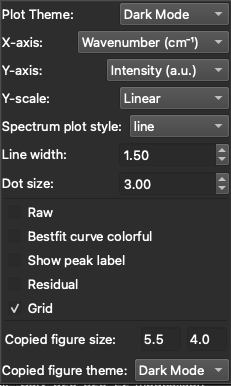 |
3.3. Batch Legend Editor
Show the legend with the Legend toolbar button, then double-click anywhere inside the legend box to open the batch editor. This replaces the older workflow that required opening a separate dialog for every label or color.
The top of the dialog contains two plot-wide controls:
- Color palette: Select a palette from its visual color-strip preview. Discrete choices include the 20-color
DEFAULT_COLORS,tab20,tab20b,tab20c,Dark2,Paired, andAccent. Gradient choices includeviridis,plasma,jet,cividis, andmagma. - Max legend items: Set how many entries appear in the plot legend. The default is 15. This setting does not remove spectra from the plot.
The spectrum table provides one row per editable spectrum:
- Spectrum identifies the original spectrum or filename.
- Color selects a swatch from the active palette. Automatic keeps the spectrum linked to its palette-assigned color; selecting a swatch creates a per-spectrum override. Use More colors… for a color outside the palette.
- Label changes the text shown in the legend. Clearing a custom label restores the spectrum filename.
Changing the palette updates every Automatic color preview while preserving manually selected colors. Select OK to apply all edits together, or Cancel to discard every change made in the dialog. Accepted labels and colors are written back to the underlying spectrum objects, so the spectra list, Spectra workspace, Maps workspace, and saved workspace data remain synchronized.
100-spectrum editing batches
To keep the interface responsive with large selections, the dialog creates editors for at most the first 100 plotted spectra in both the Spectra and Maps workspaces. When the selection is larger, the dialog reports “showing 100 of N”. Spectra outside the displayed batch are not modified. Narrow the current selection to edit another group.
3.4. Heatmap Visualization Mode
The Heatmap Plot tool transforms multiple plotted spectra into a continuous 2D intensity map. This mode is particularly powerful for analyzing series data, such as in-situ temperature profiles, time-resolved kinetics, spatial line-scans, or composition gradients.
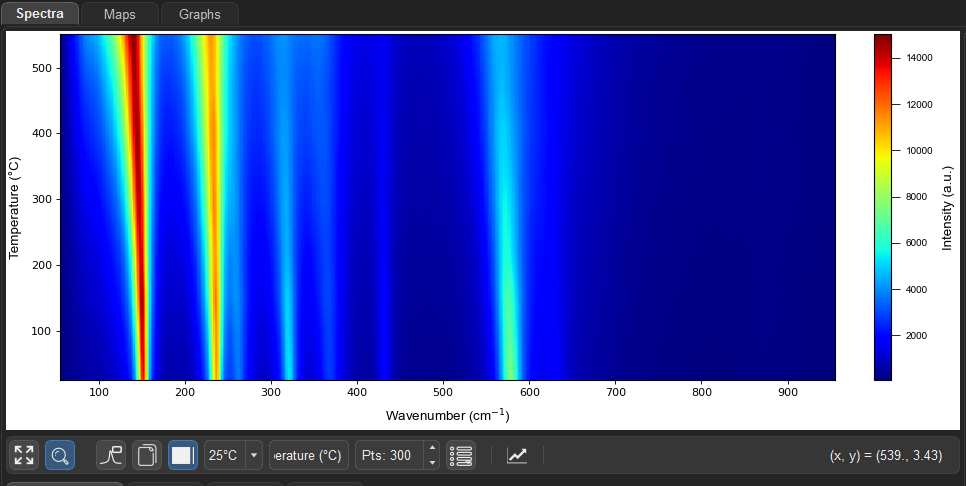
The
SpectraViewer in Heatmap visualization mode, displaying a continuous 2D intensity map across an in-situ temperature series.
Key Controls and Parameters
When Heatmap mode is activated, specialized configuration controls appear directly on the main toolbar, while incompatible 1D tools (such as peak markers, baseline anchors, cosmic-ray eraser, and normalization entries) are automatically hidden:
- Heatmap Toggle (): Enables or disables 2D heatmap rendering. Unchecking this button instantly restores standard 1D spectrum curves and returns all standard toolbar tools.
- Y-Axis Parameter Dropdown:
Index: Stacks spectra uniformly along the vertical axis according to selection order (0, 1, 2, ...).- Filename Tokens: Automatically extracts numerical parameters embedded in filenames separated by underscores (for instance,
sample_25°C.txt,sample_100°C.txt,sample_200°C.txtautomatically populate tokens such as25°C, extracting the corresponding numerical values25, 100, 200for physical Y coordinates). - Custom Y-Axis Label: Text field to override the automatic vertical axis title (e.g.,
Temperature (°C),Time (min), orPosition (µm)). - Y-Axis Interpolation Points (
Pts:): Specifies the number of interpolated vertical slices (default300pts) using smooth interpolation. Setting this value to0disables interpolation, displaying raw discrete rows. - Intensity Colormap: Respects the active color palette chosen under More Options (e.g.
jet,viridis,plasma).
4. FitModelBuilder
The FitModelBuilder tab is where you configure your spectral fit models. It is divided into three main panels: Fitting, PeakTable, and FitModelControl, each explained in the following sections.
You can use global fitting parameters or adjust fitting parameters in the Settings Panel (see the "Settings" section for details).
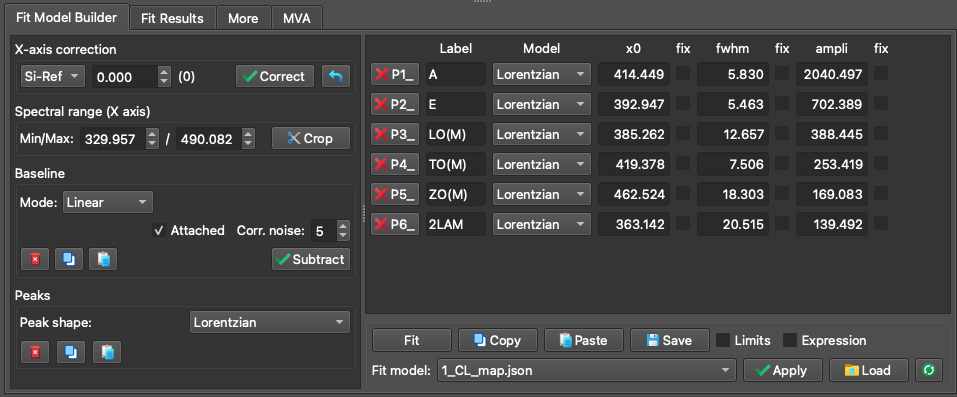
The
FitModelBuilder tab featuring: (1) The Fitting panel (left), (2) The PeakTable panel (top-right), and (3) The FitModelControl panel (bottom-right).
4.1. Fitting Panel
The Fitting panel guides you through the process of building a robust model in four logical steps:
Step 1: X-axis Correction (Optional): Perform an empirical X-axis correction based on measurements from a known reference sample (e.g., a Silicon peak at exactly 520.7 cm⁻¹). Simply fit your reference data, input the theoretically correct position, and apply the shift to correct calibration offsets globally.
Step 2: Define the Fitting Range: Restrict the mathematical fitting process to a specific X-axis region of interest.
Step 3: Baseline Definition: SPECTROview offers two distinct modes for defining spectral baselines (Manual or Auto):

Baseline mode selection: Manual mode (left) vs. Auto mode (right).
- Manual Mode (
LinearorPolynomial): Define baseline anchor points by clicking directly in theSpectraViewer. Check Attached to automatically snap your clicked points to the nearest data curve. Check Correct noise to calculate the point's intensity as a local average of neighboring data, making the anchor placement robust against high noise. - Auto Mode: Let advanced algorithms automatically generate the baseline curve. Use the slider to fine-tune the algorithm's aggressiveness.
arPLS: Asymmetrically Reweighted PLS. A gold-standard algorithm for typical Raman and IR baselines.airPLS: A highly aggressive algorithm, excellent for removing strong, complex fluorescence backgrounds. Highly recommended and validated for Raman data.AsLS: A very stable algorithm, though it can sometimes struggle to distinguish between noise and broad peaks. Best suited for relatively clean spectra.ModPoly: Modified Polynomial. Extremely popular and effective for simple polynomial fluorescence backgrounds.
Step 4: Peak Definition:
- Add peaks directly inside the
SpectraViewerby left-clicking (ensure the Peak toggle button is active). You can interactively adjust their initial guesses by dragging them with the mouse. - Every peak added to the plot is immediately listed in the
PeakTable. - Supported peak profiles include:
Lorentzian,Gaussian,PseudoVoigt,LorentzianAsym,GaussianAsym,Fano,DecaySingleExp, andDecayBiExp.
4.2. Supported Peak Profiles
SPECTROview's VBF Engine provides heavily optimized implementations for the following mathematical peak profiles:
| Model | Parameters | Formula |
|---|---|---|
Gaussian |
ampli, fwhm, x0 |
a · exp(-4 ln(2) · (x-x0)2 / w2) |
Lorentzian |
ampli, fwhm, x0 |
a / [1 + 4(x-x0)2 / w2] |
PseudoVoigt |
ampli, fwhm, x0, alpha |
α · G + (1-α) · L |
GaussianAsym |
ampli, fwhm_l, fwhm_r, x0 |
Piecewise Gaussian with left/right FWHM |
LorentzianAsym |
ampli, fwhm_l, fwhm_r, x0 |
Piecewise Lorentzian with left/right FWHM |
Fano |
ampli, fwhm, x0, q |
a · (q + ε)2 / (1 + ε2), ε = 2(x-x0)/w |
DecaySingleExp |
A, tau, B |
A · e-t/τ + B |
DecayBiExp |
A1, tau1, A2, tau2, B |
A1 · e-t/τ1 + A2 · e-t/τ2 + B |
4.3. PeakTable Panel
The PeakTable displays all mathematical parameters for the peaks you have defined. When you drag a peak in the viewer, these properties update dynamically.
Dynamic Peak Indexing: Every peak is automatically indexed with a suffix (e.g., _1, _2) indicating its order of creation. When you add, delete, or reorder peaks, SPECTROview automatically re-indexes them to maintain consecutive numbering (e.g., if you delete peak 2, peak 3 becomes the new peak 2). This ensures your expressions and fit results remain organized.
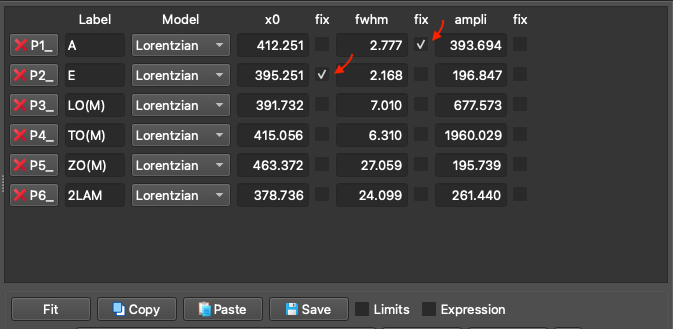
The
PeakTable panel displaying peak parameters and constraints.
Add Constraints for Fit Model:
Fix: Check the "fix" box to freeze the parameter value, preventing the optimizer from changing it during the fit.
Limits: Enter minimum and maximum boundary values to restrict how far the optimizer can move the parameter.
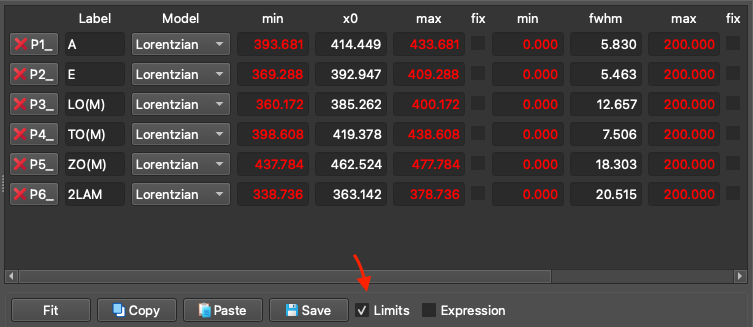
Example 1: Activate the "Limits" option under the peak table and set "min" and "max" values for each fit parameter.
Expression: Define complex mathematical relationships between parameters. SPECTROview's VBF Engine robustly evaluates these expressions mathematically before mapping them to the optimizer. If peaks are re-indexed due to deletions, their references in your mathematical expressions are automatically updated to prevent broken models.
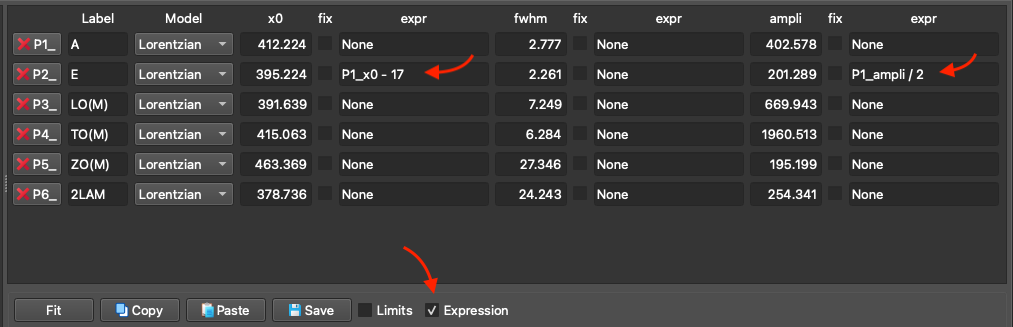
Example 2: Using an expression to constrain that (1) the peak position of peak E (P2) is 17 smaller than peak A (P1) or (2) the amplitude of peak E (P2) is exactly half the amplitude of A (P1).
4.4. FitModelControl Panel
Once your model is fully defined, click the Fit button to execute the optimization.

The
FitModelControl panel.
Copy / Paste Fit Models: A fully configured fit model can be copied from one spectrum and pasted onto another, making it easy to replicate complex setups across isolated files.
- When you Paste a model, the engine always fetches the current Noise Threshold setting from your active Settings Panel. This means you can copy a model, adjust your noise threshold, and paste it to apply the model with the updated noise settings.
Saving / Loading Fit Models: If you intend to use a model frequently, you can save it as a template. Stored models can be easily accessed and applied to new datasets using the dropdown menu.
- When you Save a model to a
.jsonfile, the current Noise Threshold is permanently baked into that file. Later, when you Apply (Load) that model, the fit engine strictly uses the exact noise threshold saved in the file, ignoring whatever is currently set in your Settings Panel.
5. Collect and Save Fit Results
Once fitting is complete across your spectra or maps, you need to aggregate the best-fit results:
- Navigate to the Fit Results tab.
- Click the Collect button. SPECTROview will instantly aggregate all best-fit parameters into a unified, sortable table. Each spectrum's fit quality (R2, the coefficient of determination) is included as a column, so you can filter, sort, or plot it (e.g. an R² heatmap in the
Mapsworkspace) just like any fitted parameter.
Adjusting decimal precision: the number of decimal places shown for the numeric results (x0, ampli, fwhm, area, R2, …) is controlled by the Fit results decimals spinbox at the top of the Fit Results tab, just above the Collect button (default 3). Change it, then click Collect again to rebuild the table at the new precision. It also applies to computed columns (see below). The X/Y coordinate columns always keep full precision.
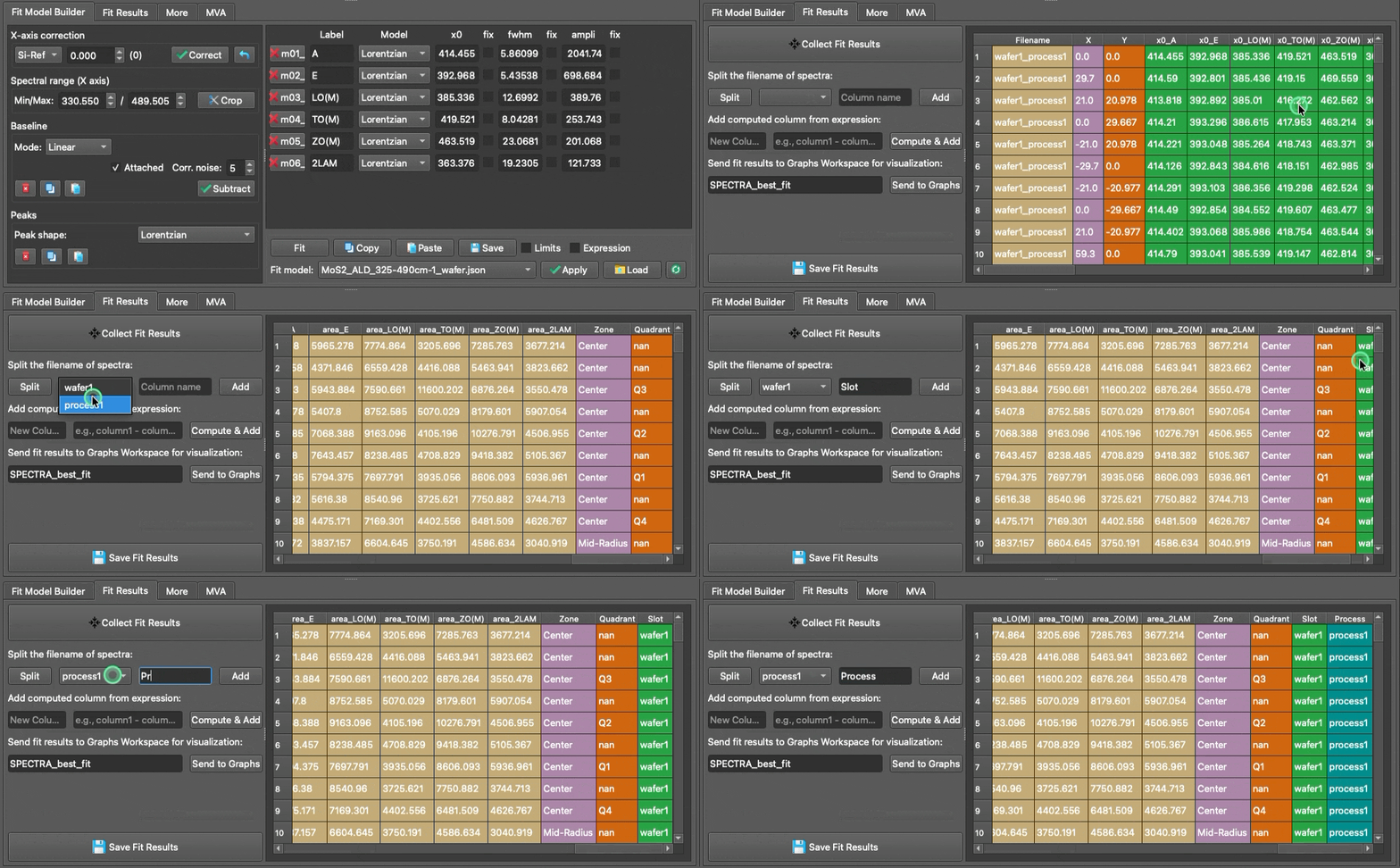
The Collect Fit Results interface and aggregated data table.
5.1. Splitting Filename Features
This tool allows you to automatically extract metadata embedded in your filenames. For example, if your files are named Sample1_ProcessA_Temp25, the tool can split the filename by underscores (_) and assign the extracted values into distinct new columns in your dataset (see the video above).
5.2. Compute and Add New Columns
You can easily create new columns derived from mathematical combinations of existing fitted parameters (e.g., calculating a peak shift via x0_p1 - x0_p2).
Supported mathematical operations include: +, -, *, /, **, %, and (). The computed column is rounded to the same Fit results decimals precision set at the top of the tab.
Important Note: If your column names contain spaces or special characters, you must enclose them in backticks. Example:
`x0_LO(M)`
5.3. Save and Visualize
Once your data table is finalized, you can:
- Save it with a descriptive name, then send it directly to the
Graphsworkspace for immediate plotting.

- Export it to an Excel/CSV spreadsheet for external use.

6. More Tab
The More tab provides access to auxiliary tools and metadata, divided into three sections:
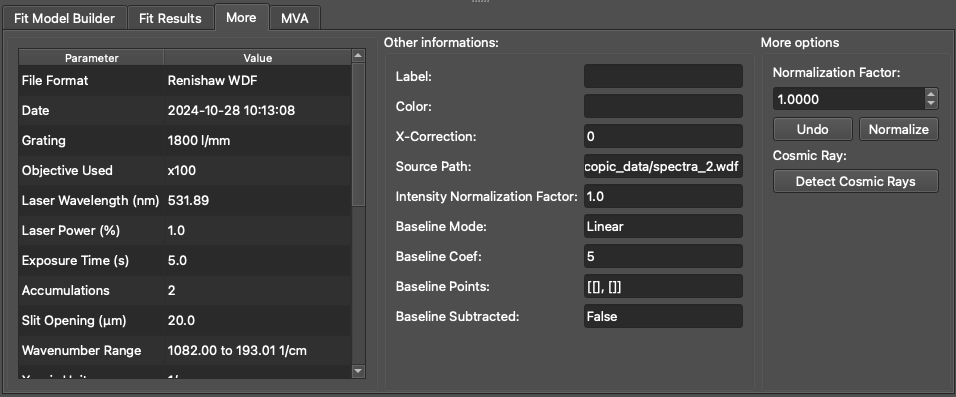
- Left: Displays comprehensive metadata extracted directly from loaded
.wdfor.spcfiles, showing the exact instrument settings used during acquisition. - Middle: Displays detailed properties and statistical information about the currently selected spectrum.
- Right: Provides access to additional pre-processing utilities, such as global intensity normalization algorithms and cosmic ray artifact detection.