Menu Bar
Menu Bar
1. Menu Bar Buttons
A horizontal toolbar located at the top of the application provides quick access to essential features:
| Button | Function |
|---|---|
 |
Open: Loads any supported data type. The application automatically detects the file format and switches to the appropriate workspace. |
 |
Save: Saves the active workspace to a dedicated file (.maps, .spectra, or .graphs), allowing you to pause and resume your work effortlessly. |
 |
Clear: Clears the currently active workspace, removing all loaded data to start a fresh session. |
 |
Convert: Opens the Hyperspectral Data Converter tool (see below for details). |
 |
Calculators: Opens the Quick Calculators tool (Ctrl + Shift + C, see below for details). |
| 🤖 | SPECTROview AI Agent: Opens the AI Chat Agent panel (Ctrl + Shift + A) to query, filter, and plot your data in natural language. See the "AI Chat Agent" section. |
 |
Settings: Opens the Settings Panel (Ctrl + Shift + S, see below for details). |
| 🔄 | Check for updates: Manually checks the GitHub Releases page for a newer version. |
 |
Theme: Opens a dropdown to choose the interface theme — Dark, Soft Dark, Light, Classic Dark, or Classic Light. |
 |
User Manual: Opens the integrated User Manual viewer (Ctrl + Shift + M; Ctrl+Click opens the online web manual). |
 |
GitHub: Opens the SPECTROview GitHub repository in your browser. |
 |
About: Displays version information, licensing, and details about the SPECTROview application. |
A greyed version label (e.g.
v26.29.0) sits at the far right of the toolbar — click it to view the latest release notes.
2. Settings Panel
Click the Settings icon to open the Settings Panel. See the "Settings" section for details.
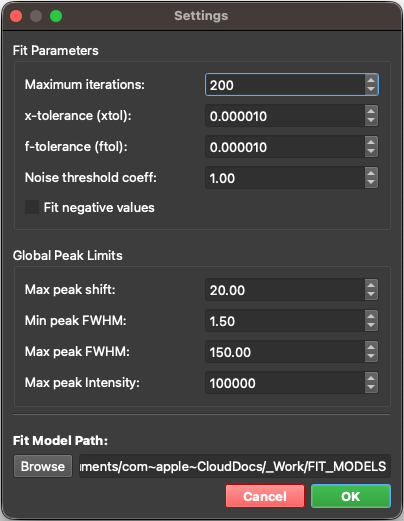
The Settings Panel interface.
3. Hyperspectral Data Converter Tool
Click the Convert icon to open this utility.
To convert hyperspectral data (2D maps) from Renishaw WiRE into a format natively supported by SPECTROview, load your file(s) and click Convert. The converted file will be saved with a _converted suffix in the same directory as the original file.
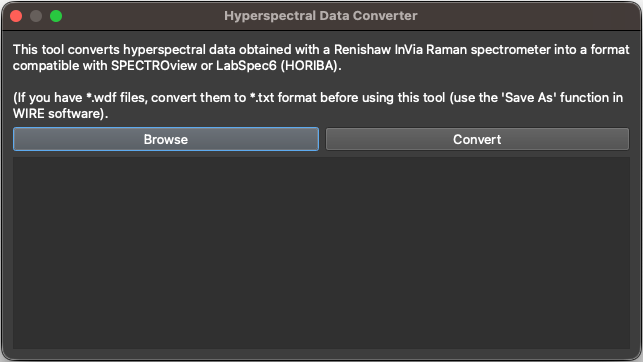
The Hyperspectral Data Converter Tool interface.
4. Quick Calculation Tool
Click the Calculator icon to open a suite of utility calculators. See the "Quick Calculators" section for details.
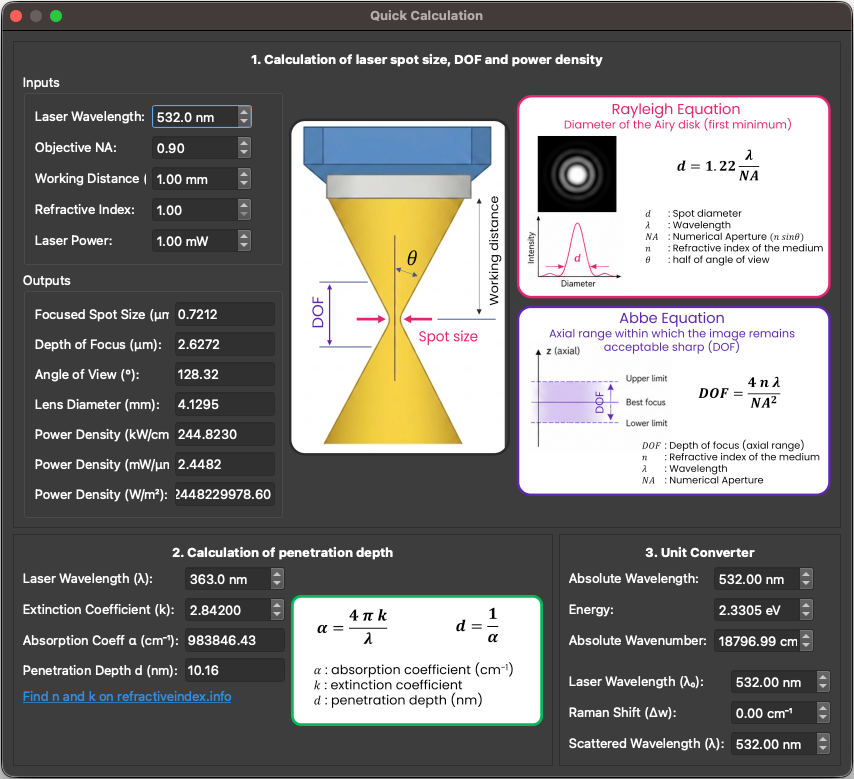
The Quick Calculators interface.
5. Keyboard Shortcuts
You can quickly access tools from anywhere in the application using the following keyboard shortcuts:
- Ctrl + Shift + A: Open AI Chat Agent
- Ctrl + Shift + S: Open Settings Panel
- Ctrl + Shift + M: Open User Manual
- Ctrl + Shift + C: Open Quick Calculators